Adding a New DMN Rule
A decision table can have one or more rules. Each rule consists of input and output entries. The input entries are input conditions and the output entries are output conclusions of the rule. If an input condition is satisfied, then the output entry of that rule is the decision result. For more information about DMN, click here.
Considering a scenario where IDology is used for identity verification and authentication of applicants, an application is approved only when the applicant is authenticated. However, in some cases such as for demo purposes, you would want an application to be AutoApproved without depending on IDology’s decision. In such cases, a new DMN rule can be configured in Redhat such that the application is always moved to the AutoApproved state.
Here are the steps for creating a user defined rule for application’s Auto Approve Scenario, based on applicant’s first name:
- Login to RedHat Business Central.
- Navigate to Projects > SMH > Origination.
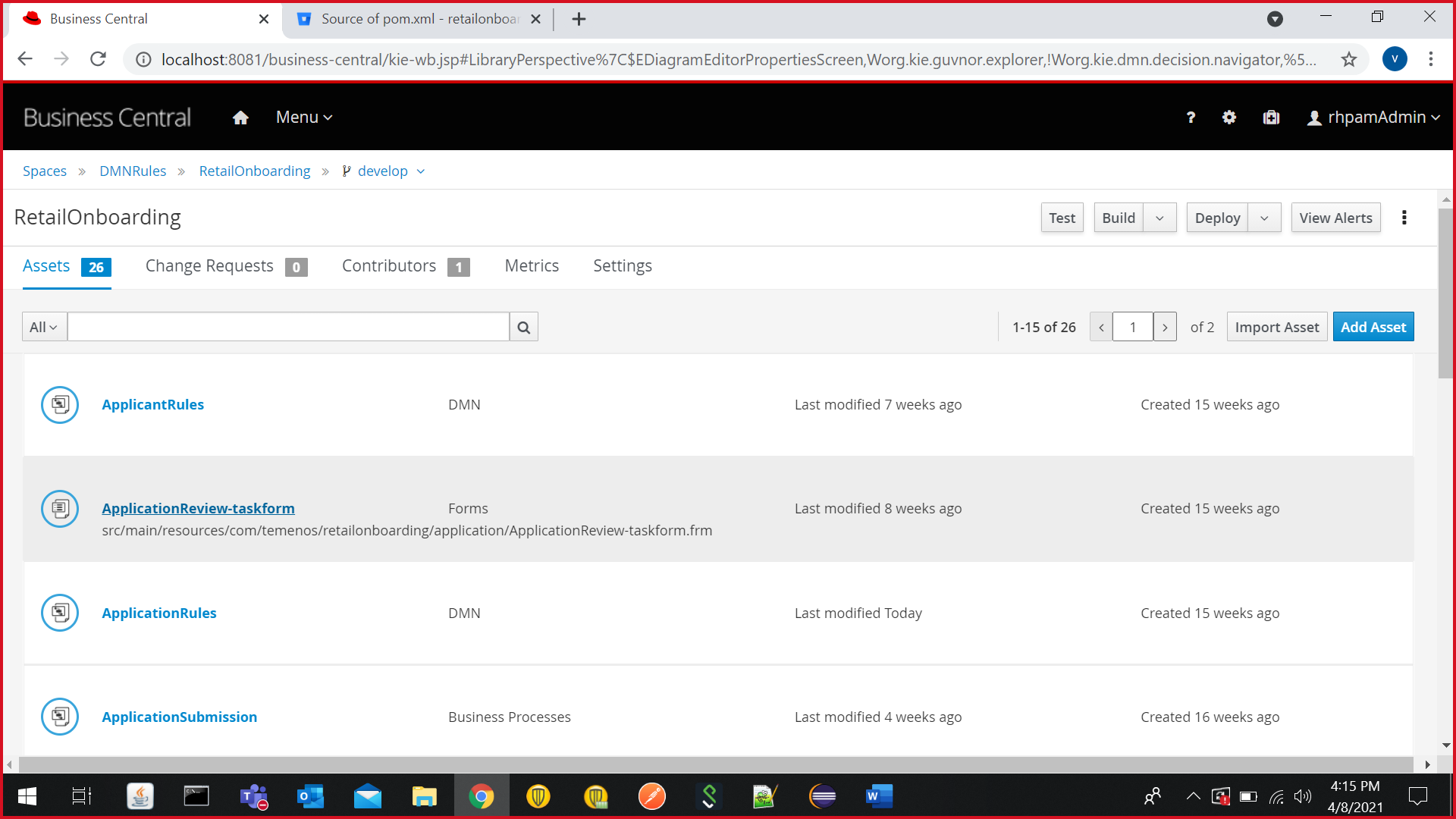
- Click on ApplicationRules.

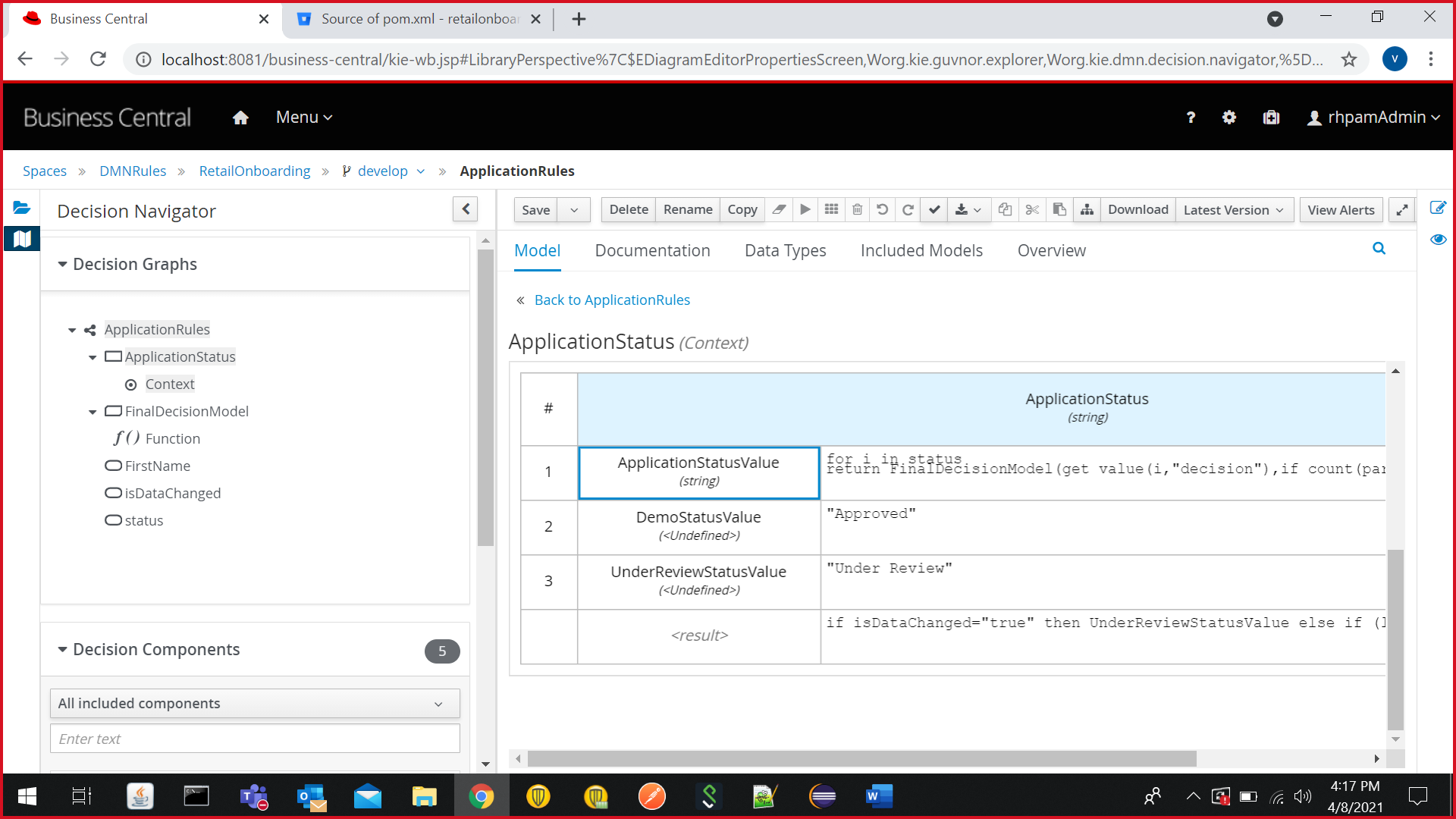
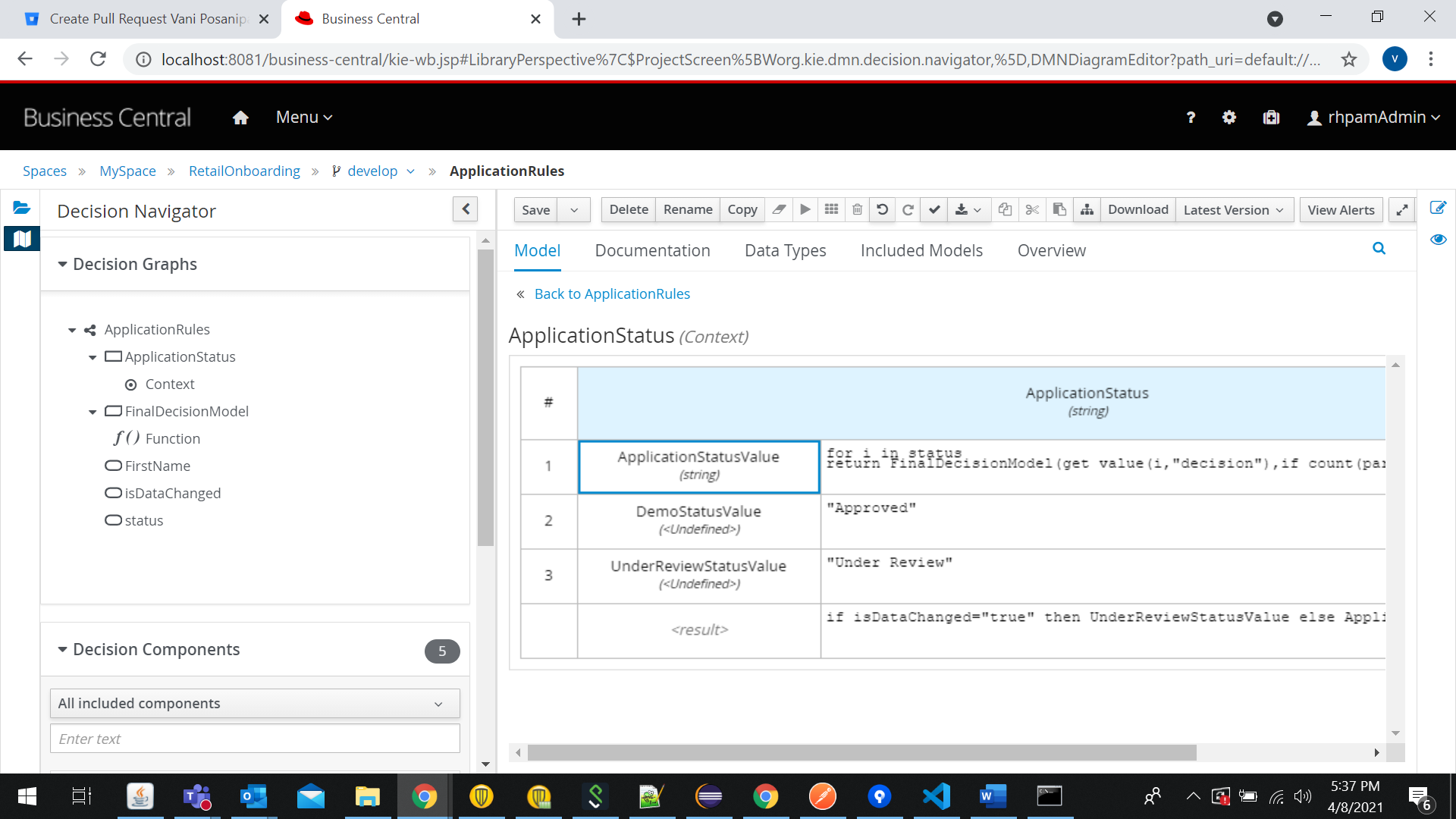
- From the Decision Navigator, navigate to Decision Graphs > ApplicationRules > ApplicationStatus > Context. The Model view appears in the right-pane.

- In the ApplicationStatus decision table, go the <result> row. The existing value is:
if isDataChanged="true" then UnderReviewStatusValue else ApplicationStatusValue[-1]
Modify the value to:
if isDataChanged="true" then UnderReviewStatusValue else if (list contains(["MAX","PAULO"],upper case(FirstName))) then DemoStatusValue else ApplicationStatusValue[-1]
The Auto Approve rule is added with the first name(s) separated by comma.
- Click on Save.

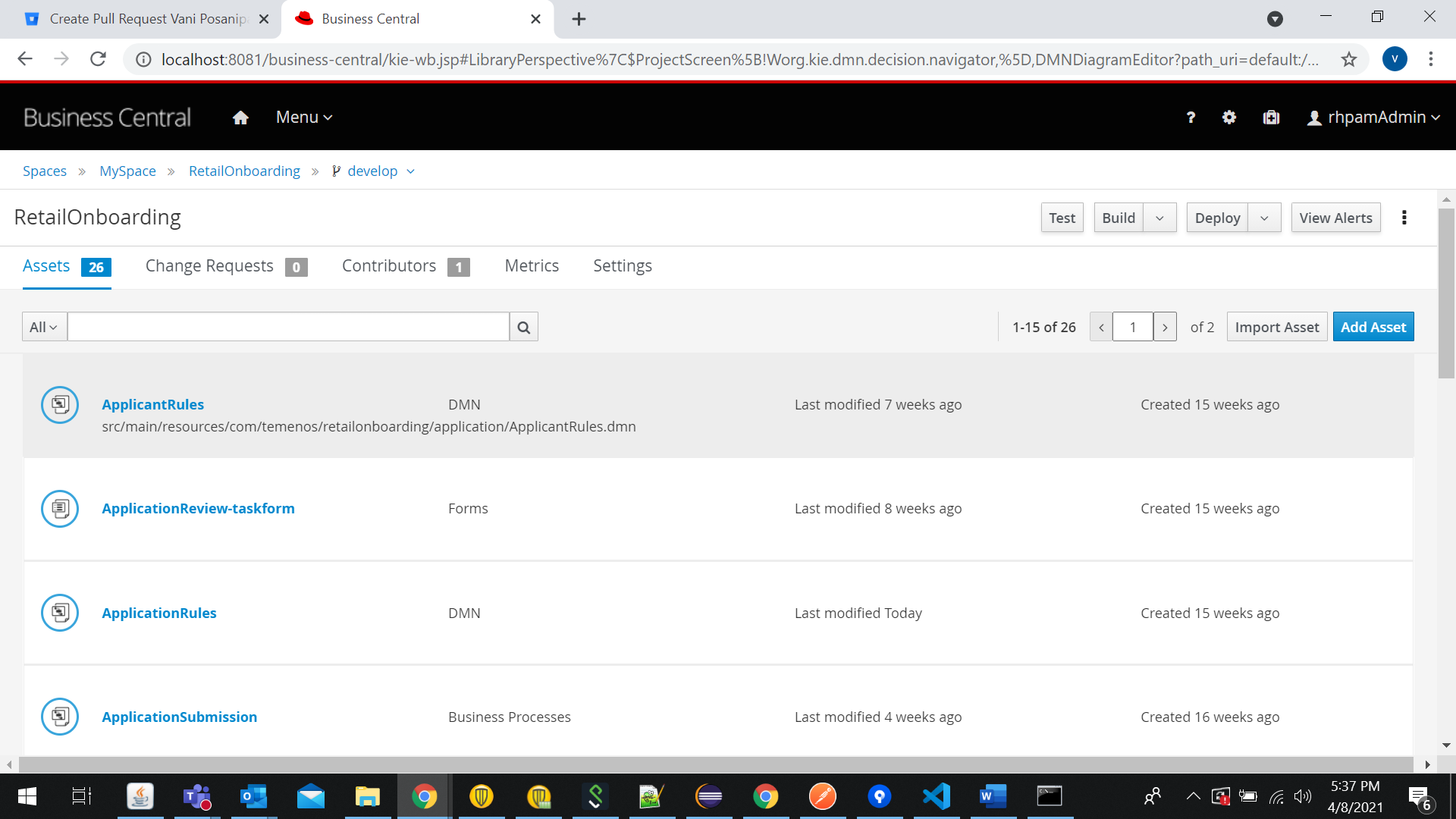
- From the breadcrumbs, navigate back to the RetailOnboarding screen and then click Deploy. You will see a notification that the deployment to server configuration is successful.

In this topic
